Adding Winnow to your Cargo Collective Site
The Cargo Collective offers a very powerful website builder. With it you can build and design websites exactly to your own specifications. What the platform does not yet offer is a robust solution for search. While you might not need search while your page is small, chances are you will need it as it grows. Given that you are reading this particular guide, chances are you might have reached this stage by now.
Winnow Search works well on sites where you can add a small script tag, which makes it a good fit for websites built with and hosted by Cargo Collective.
Use this guide as a starting point for how to set things up. If you run into issues along the way, feel free to email us at support@winnow-sear.ch.
Different ways of using Winnow Search
We will present two different ways to use Winnow Search with your Cargo Collective website.
Preparation
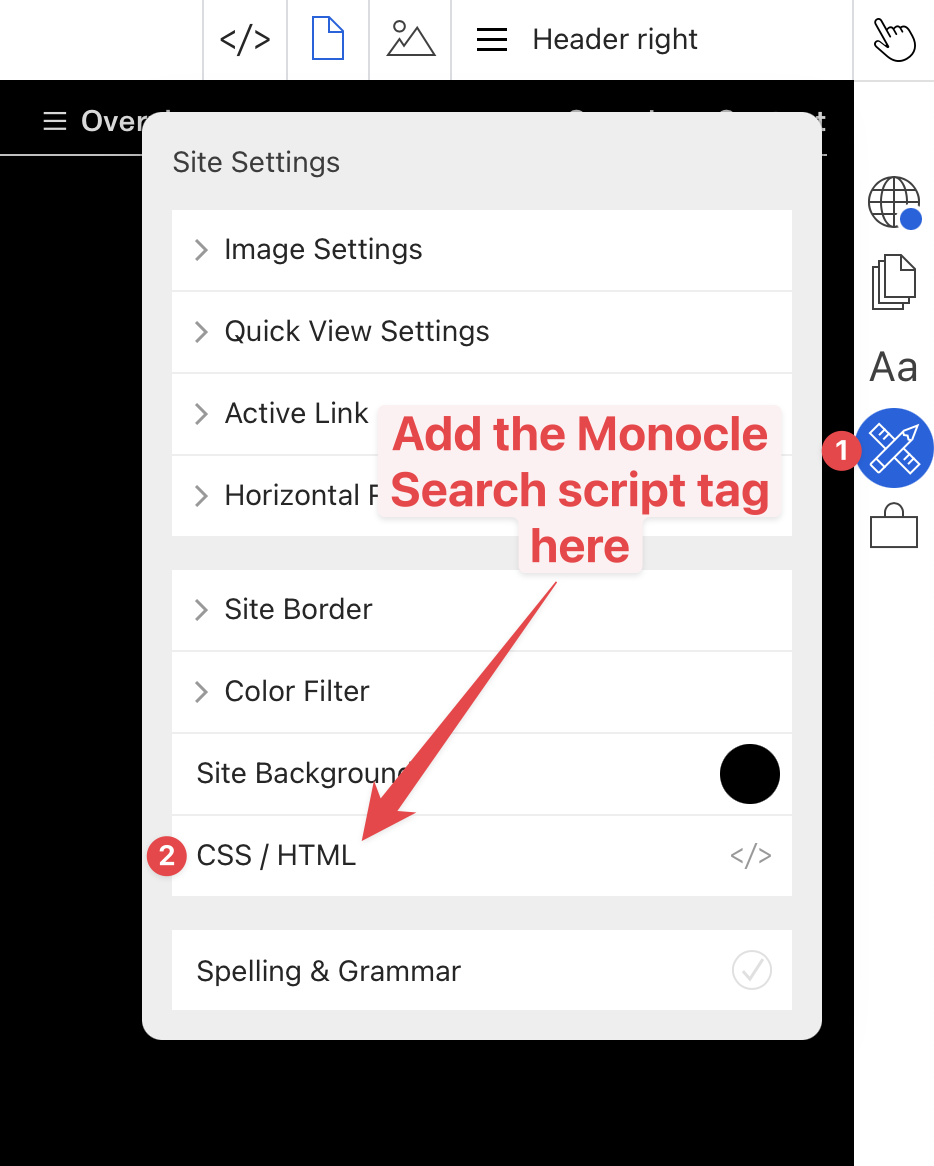
Whichever way you decide to add Winnow Search, you first need to add the Winnow Search script tag to your website. You get your own personalized tag by signing up for an account and adding your website to Winnow Search. Once you have a script tag, you can head to the CSS / HTML editor that you can find under the Settings menu tab on the right in the Cargo website editor:
With the HTML editor open, paste your Winnow Script tag:
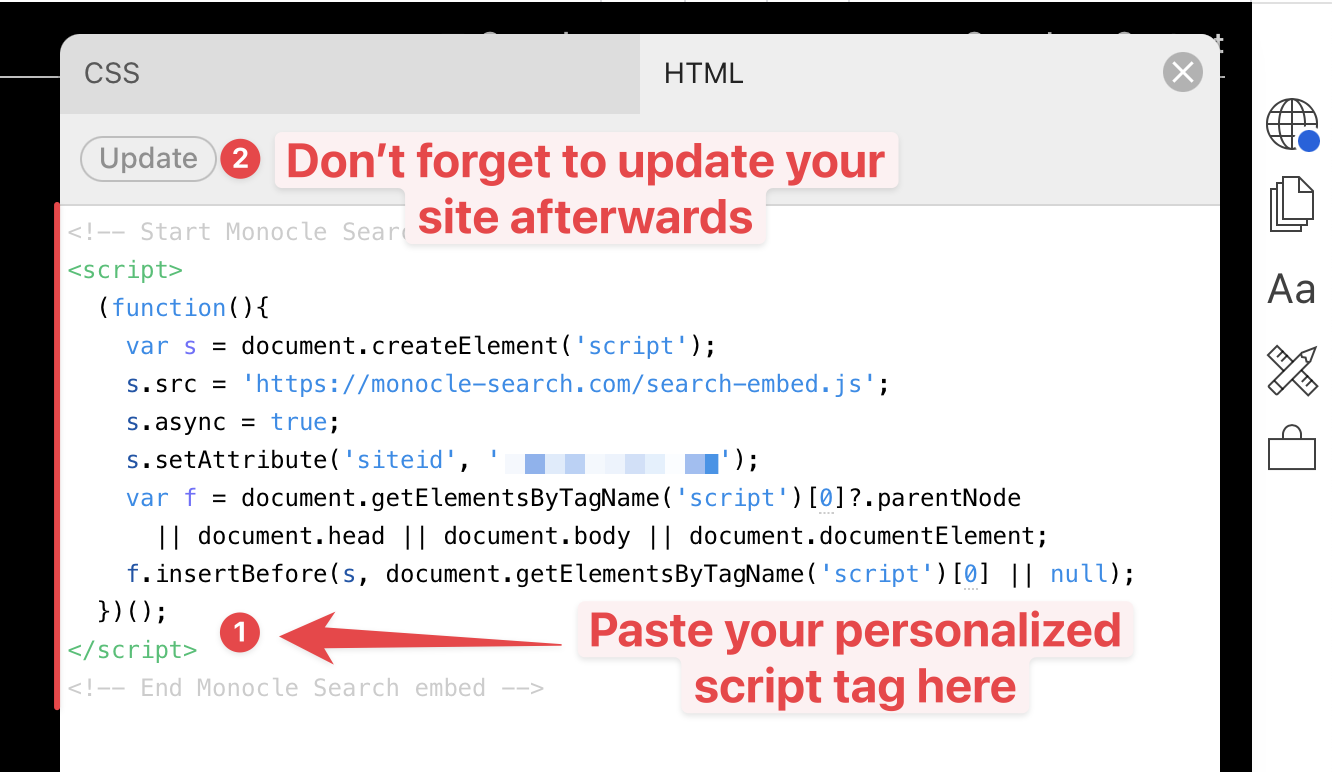
Don't forget to hit the "Update" button once you have added your Winnow script tag.
Search from any page
If you want your users to be able to access search from any page, we recommend that you add a link titled "Search" in your page navigation or in the footer of your website.
You can do this as follows:
- Make sure you have performed the preparatory step of adding the Winnow Search embed to your website
- If your design does not yet have a header or footer where you can place your search link, visit the Add a site footer support page on Cargo Collective to learn how you can add one
- Amend your header (or footer) to include a link with a URL of
/search
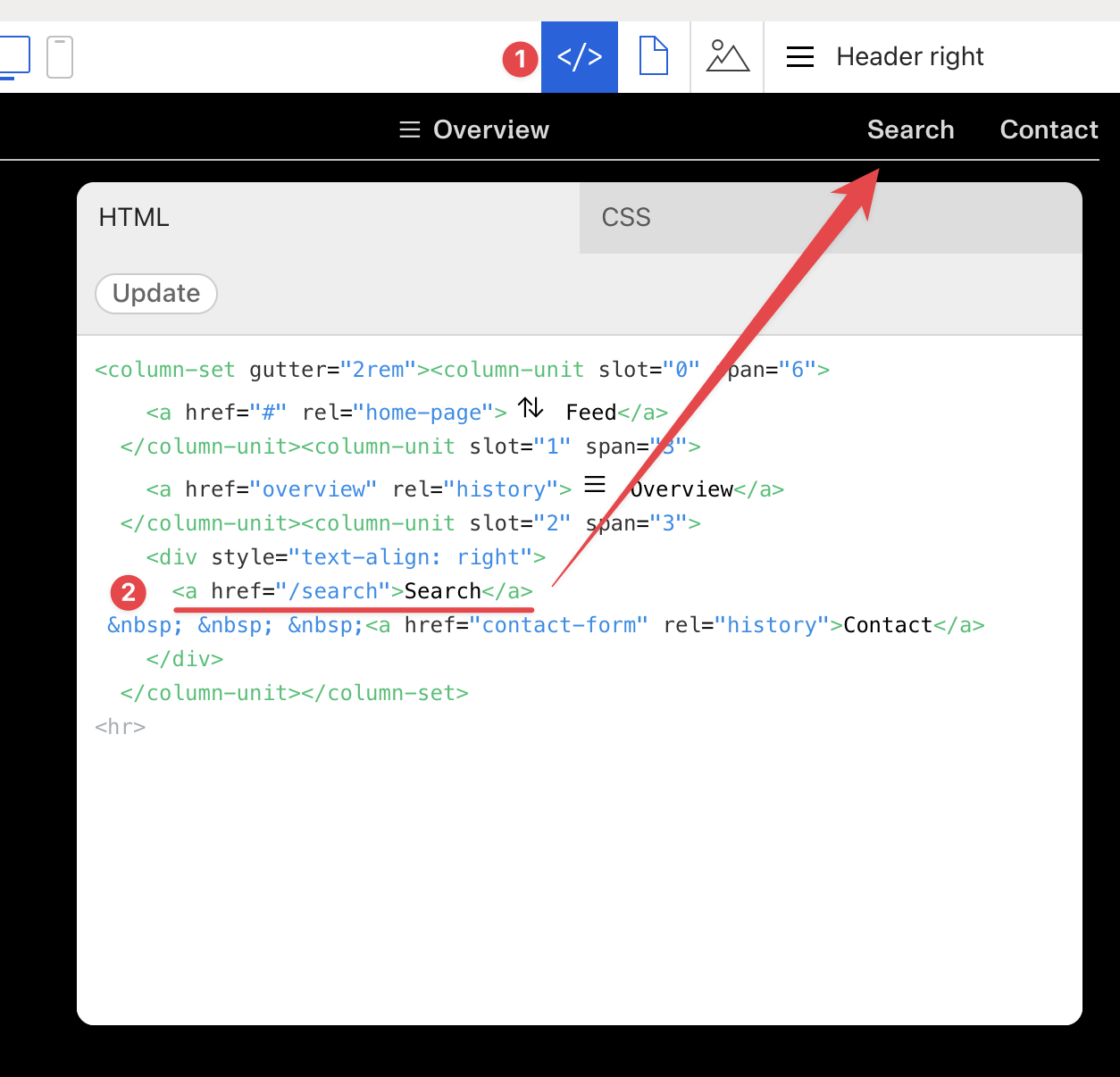
When you publish your site, your visitors should now be able to open the search interface using the "Search" link in your header.
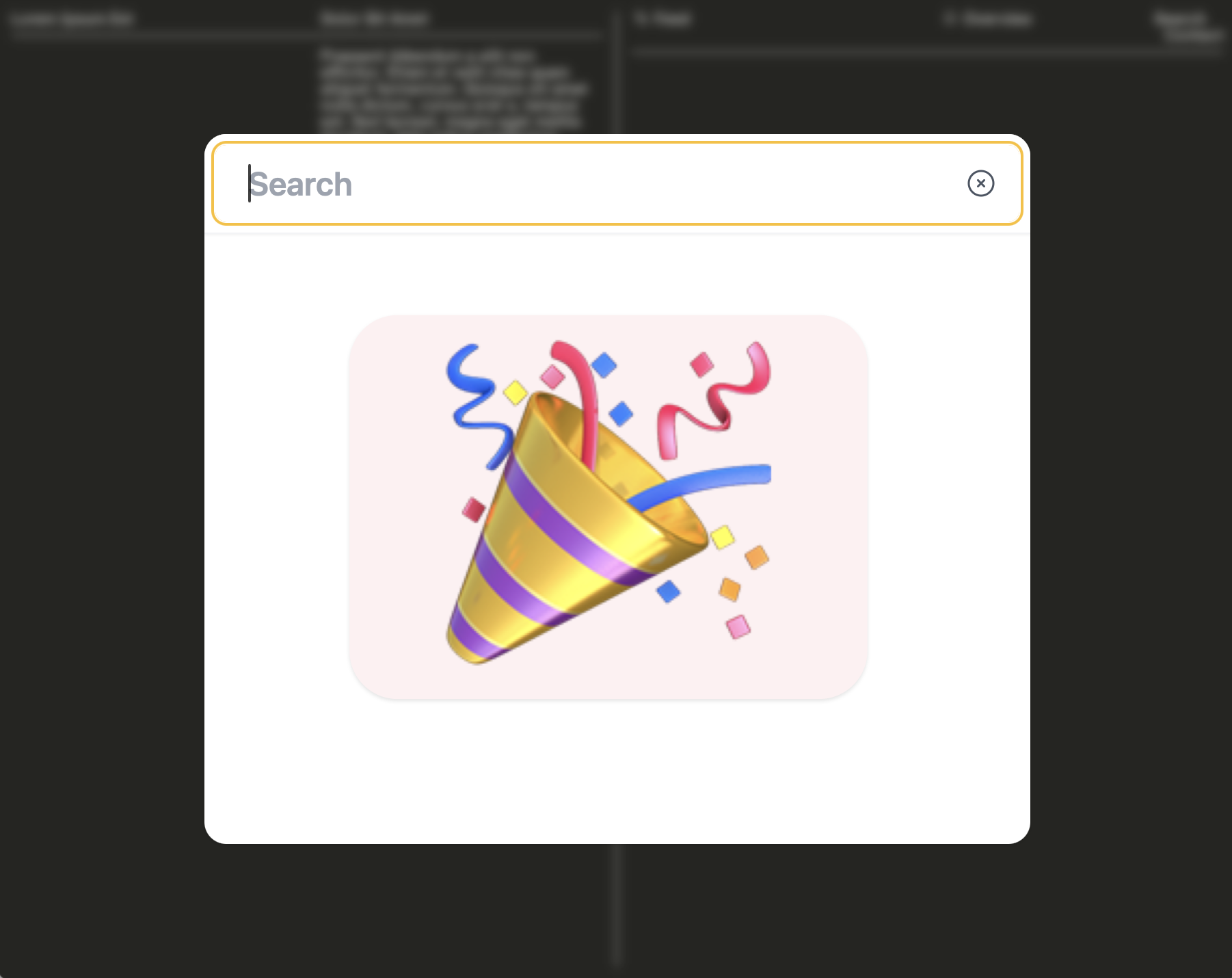
You can alter the design of this search interface in the Winnow Search admin interface.
It should be noted that there is nothing special about the link in the header. Whenever a user clicks on any link on your website that points to /search, or to a link to the full URL of your website with /search appended at the end, such as mysite.com/search, the search interface will open.
Search using a search input
You can also add a search input anywhere on your site. If the search input has a type of search we will detect it, and search results will show as the user types into it.
You go about adding such a search field by following these steps:
- Make sure you have performed the preparatory step of adding the Winnow Search embed to your website
- Add an input field of type
searchto any page where you would like your visitors to be able to search
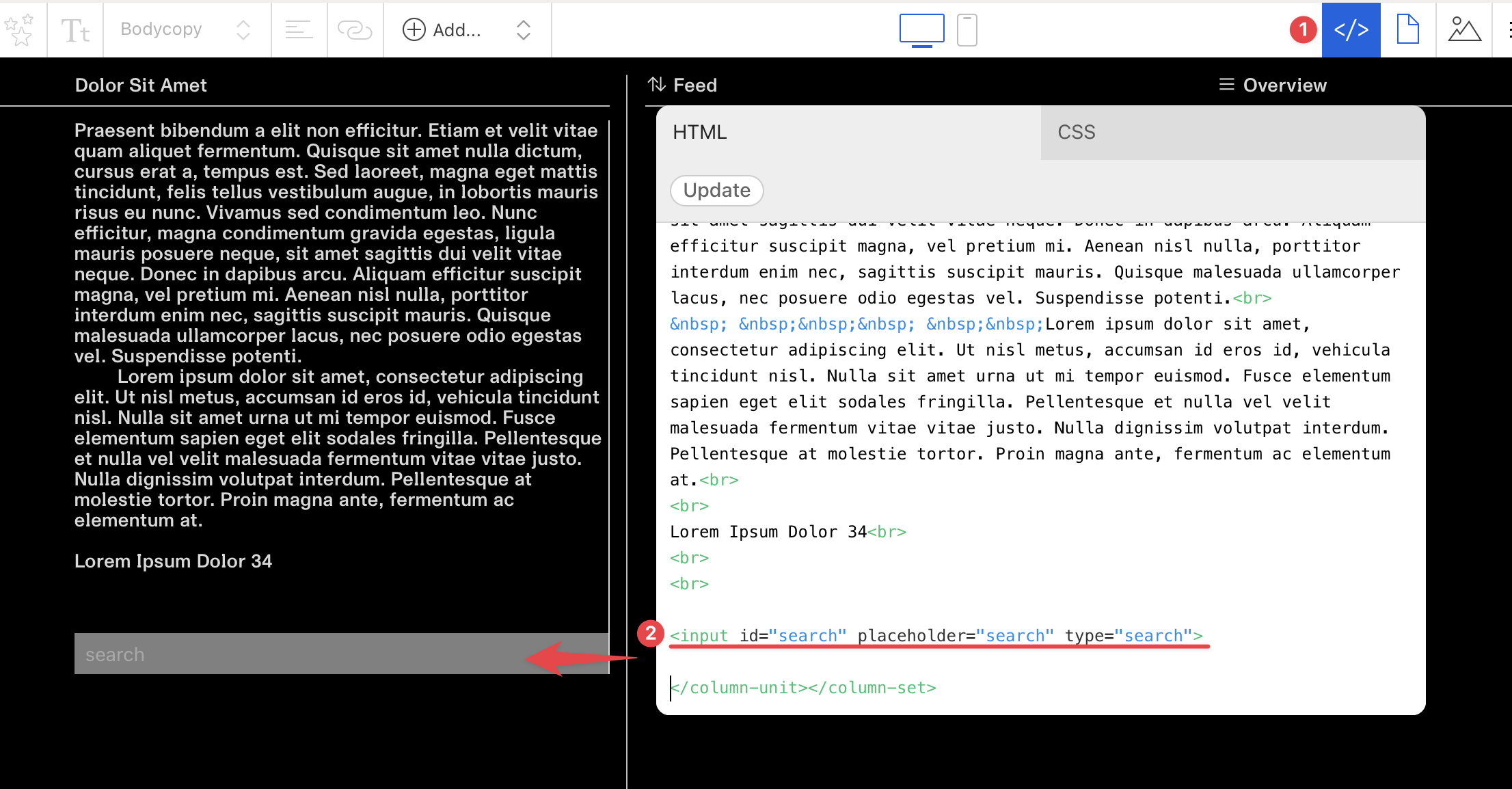
- Optionally add some custom CSS to style the search input to your liking. The search input in the image above was styled using the following CSS:
input[type="search"] {
  padding: 4px 8px;
  width: 100%;
  background-color: rgba(255, 255, 255, 0.5);
}
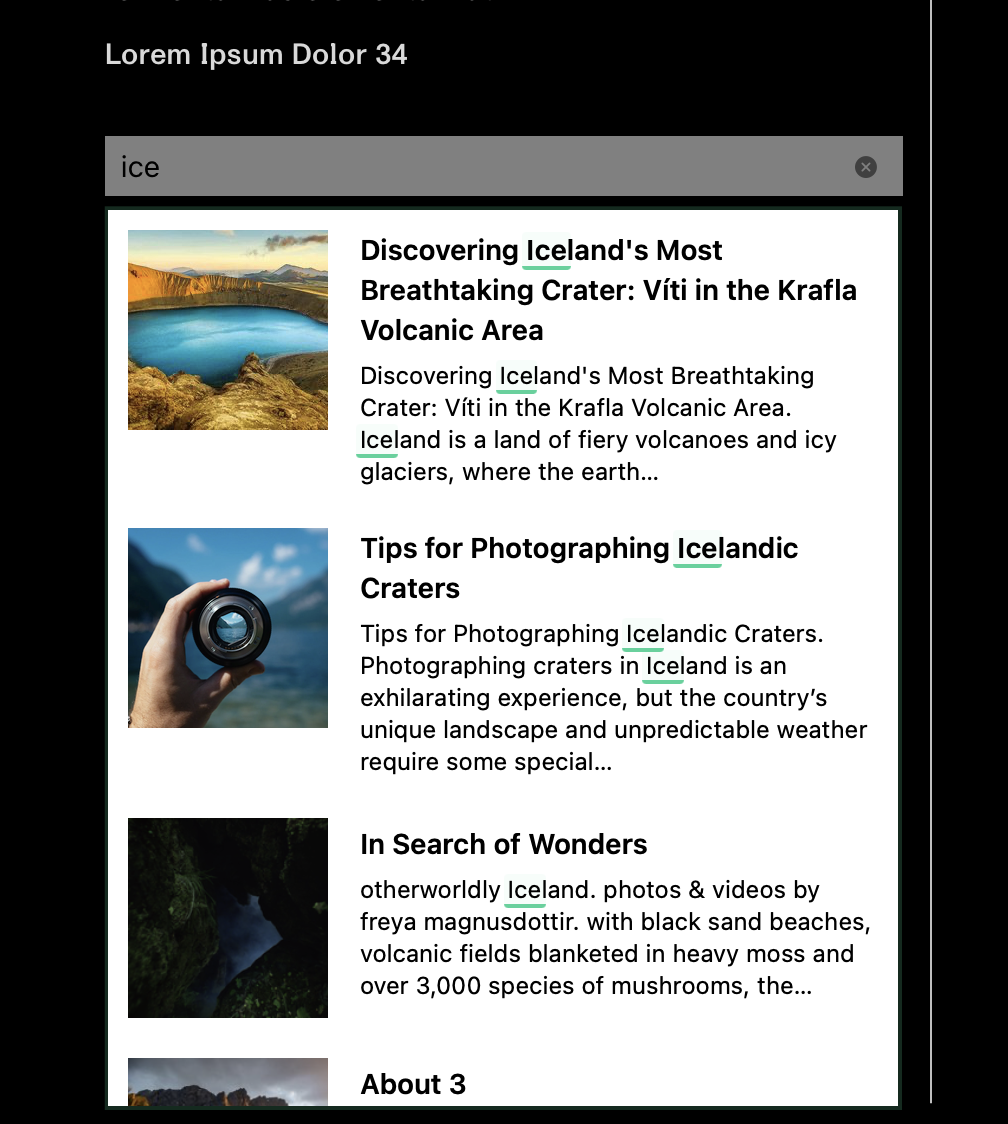
With the above configuration in place, your site visitors will get a search interface shown inline in your page as they type their search query:
We would love to hear from you if you give adding Winnow Search to your Cargo Collective site a go!
While Winnow Search was not primarily designed for this use, we have already received very positive feedback from Cargo Collective site owners. Should you run into any issues with your site, please let us know, and we will do our best to troubleshoot. You can reach us under support@winnow-sear.ch.
Happy searching!